useRef

React에서 DOM 요소나 효과를 저장하고 추천할 수 있는 Hook

사용하면, 구성 요소가 다시 연결되는 기본값이 캠핑이 되지 않고, DOM 요소 상태를 변경하지 않고 다른 값에 접근할 수 있다.


useRef의 주요 특징

  • 리더링되지 않는다 : useRef에 저장된 값이 포함된 구성요소는 리렌더링되지 않는다.
  • 침입자가 포함 되지 않은 경우 : 구성 요소가 리렌더링으로 인해 useRef저장되지 않은 값은 유지
  • DOM 접근 : useRef는 DOM 요소에 직접 접근할 때 유용합니다. document.getElementById()대신 querySelector()에 사용할 수 있다.

문법

import React, {useRef} from 'react';

const refContainer = useRef(initialValue);

// ref(객체명) = useRef(초기값);
//ref(객체명).current: ref에 저장된 값을 참조합니다.


예시 

1. DOM 요소에 접근하기

import React, { useRef } from 'react';

const InputFocus = () => {
  const inputRef = useRef<HTMLInputElement>(null);

  const focusInput = () => {
    if (inputRef.current) {
      inputRef.current.focus(); // input 요소에 포커스 설정
    }
  };

  return (
    <div>
      <input ref={inputRef} type="text" placeholder="Enter text" />
      <button onClick={focusInput}>Focus Input</button>
    </div>
  );
};

export default InputFocus;

요소 useRef를 사용하여 input접근하고, 버튼을 클릭하면 입력 요소에 포커스를 설정


2. 기본 유지(리렌더링 시 기본으로 인해 발생하지 않음)

import React, { useRef, useState } from 'react';

const Counter = () => {
  const [count, setCount] = useState(0);
  const countRef = useRef(0);

  const incrementCount = () => {
    setCount(count + 1); // 상태 업데이트
    countRef.current += 1; // ref 값 업데이트 (리렌더링과 무관)
  };

  return (
    <div>
      <p>State Count: {count}</p>
      <p>Ref Count: {countRef.current}</p>
      <button onClick={incrementCount}>Increment</button>
    </div>
  );
};

export default Counter;

countRef가 리렌더링을 하지 않으며, 변경되지 않은 채로 가치가 있는 상태로 보관


useRef는 다음과 같은 DOM 요소를 참조하거나 리렌더링 사이에서도 상태를 유지하고 원하는 경우에 유용

useEffect()

React의 훅(Hook) 중 하나로, 함수형 컴포넌트에서 사이드 이펙트(side effects)를 처리할 수 있도록 해준다.

주요 기능은 컴포넌트가 렌더링된 이후나 특정 상태/props가 변경될 때 실행되는 코드를 정의

이전의 클래스형 컴포넌트에서는 componentDidMount, componentDidUpdate, componentWillUnmount와 같은 생명주기 메서드를 사용했지만, 함수형 컴포넌트에서는 useEffect()로 같은 효과를 처리할 수 있다.

사이드 이펙트

데이터 페칭, DOM 업데이트, 구독, 타이머 설정 등의 작업으로,

이는 컴포넌트 렌더링에 직접적으로 관여하지 않는 로직을 의미한다.


useEffect() 의 문법

useEffect(() => {
  // 실행할 코드
  return () => {
    // 정리(cleanup)할 코드 (옵션)
  };
}, [의존성 배열]);


  • 첫 번째 인자는 실행할 함수를 받는다.
  • 두 번째 인자인 의존성 배열(dependency array)은 useEffect()가 언제 실행될지 제어한다.
  • 특정 상태나 props가 변경될 때만 useEffect()를 실행할 수 있게 해준다.
    • 빈 배열 []을 전달하면, 컴포넌트가 처음 마운트될 때만 한 번 실행
    • 배열 안에 특정 변수를 넣으면 그 변수가 변경될 때마다 useEffect()가 실행
    • 의존성 배열을 생략하면, 컴포넌트가 렌더링될 때마다 useEffect()가 실행

예시

1: 데이터 페칭

import { useEffect, useState } from 'react';

function UserList() {
  const [users, setUsers] = useState([]);

  useEffect(() => {
    // 컴포넌트가 마운트될 때 한 번만 실행
    fetch('https://jsonplaceholder.typicode.com/users')
      .then(response => response.json())
      .then(data => setUsers(data));
  }, []); // 의존성 배열이 비어 있으므로, 마운트 시에만 실행

  return (
    <div>
      <h1>User List</h1>
      <ul>
        {users.map(user => (
          <li key={user.id}>{user.name}</li>
        ))}
      </ul>
    </div>
  );
}

export default UserList;

useEffect()를 사용해 API로부터 데이터를 가져오고, 컴포넌트가 처음 마운트될 때만 실행


2: 타이머 설정 및 정리

import { useEffect, useState } from 'react';

function Timer() {
  const [count, setCount] = useState(0);

  useEffect(() => {
    // 매 초마다 count 증가
    const timer = setInterval(() => {
      setCount(prevCount => prevCount + 1);
    }, 1000);

    // 컴포넌트가 언마운트될 때 타이머 정리
    return () => {
      clearInterval(timer);
    };
  }, []); // 빈 배열이므로 컴포넌트 마운트 시 한 번 실행

  return <div>Count: {count}</div>;
}

export default Timer;

1초마다 count 값을 증가시키며, 컴포넌트가 언마운트될 때 clearInterval을 사용해 타이머를 정리


3: 특정 상태가 변경될 때만 실행

import { useEffect, useState } from 'react';

function Counter() {
  const [count, setCount] = useState(0);

  useEffect(() => {
    console.log(`Count has changed: ${count}`);
  }, [count]); // count가 변경될 때마다 실행

  return (
    <div>
      <p>Count: {count}</p>
      <button onClick={() => setCount(count + 1)}>Increase</button>
    </div>
  );
}

export default Counter;

count가 변경될 때마다 useEffect()가 실행되어 콘솔에 변경된 값을 출력


useEffect()는 이런 방식으로 다양한 사이드 이펙트를 관리할 수 있어,

함수형 컴포넌트의 생명주기를 간결하게 처리할 수 있게 해준다.

Axios

브라우저와 Node.js에서 모두 사용 가능한 Promise 기반의 HTTP 클라이언트

API 요청을 보내거나 데이터를 주고받는 작업에 사용

XMLHttpRequest를 기반으로 동작

간결한 문법과 비동기적 작업 처리에 유용하여 많이 사용

GET, POST, PUT, DELETE 등의 HTTP 요청을 쉽게 보낼 수 있고, 응답 처리도 간단하다.


설치 명령어

//npm
npm install axios

//yarn
yarn add axios


예시

1. GET요청

import axios from 'axios';

axios.get('https://jsonplaceholder.typicode.com/posts/1')
  .then(response => {
    console.log(response.data);
  })
  .catch(error => {
    console.error('Error fetching data:', error);
  });

GET 요청을 보내 특정 URL에서 데이터를 가져오기

응답(response)의 data 속성에 요청된 데이터가 담겨있다.


2. POST요청

import axios from 'axios';

axios.post('https://jsonplaceholder.typicode.com/posts', {
  title: 'New Post',
  body: 'This is a new post.',
  userId: 1
})
  .then(response => {
    console.log('Data posted:', response.data);
  })
  .catch(error => {
    console.error('Error posting data:', error);
  });

POST 요청을 통해 서버에 데이터를 전송하기

title, body, userId 등의 데이터를 서버에 전달하고, 서버에서 반환한 응답을 response.data로 확인


3. 비동기 함수

import axios from 'axios';

async function fetchData() {
  try {
    const response = await axios.get('https://jsonplaceholder.typicode.com/posts/1');
    console.log(response.data);
  } catch (error) {
    console.error('Error fetching data:', error);
  }
}

fetchData();

TypeScript의 async/await 문법을 사용

async/await를 사용하면 then과 catch 대신 보다 직관적인 방식으로 비동기 작업을 처리

React Router

React 애플리케이션에서 클라이언트 측 라우팅을 쉽게 구현할 수 있도록 도와주는 라이브러리

페이지 리로드 없이 URL을 변경하거나, 사용자가 방문한 URL에 따라 서로 다른 컴포넌트를 렌더링하는 기능을 제공

글 페이지 애플리케이션(SPA)에서 페이지 전환을 구현하는데 주로 사용


설치 명령어

// npm
npm install react-router-dom

// yarn
yarn add react-router-dom


예시

// App.js
import React from 'react';
import { BrowserRouter as Router, Routes, Route, Link } from 'react-router-dom';

// 각 페이지 컴포넌트 정의
const Home = () => <h2>Home Page</h2>;
const About = () => <h2>About Page</h2>;
const Contact = () => <h2>Contact Page</h2>;

function App() {
  return (
  {/* 네비게이션 바 */}
    <Router>
      <nav>
        <ul>
          <li><Link to="/">Home</Link></li>
          <li><Link to="/about">About</Link></li>
          <li><Link to="/contact">Contact</Link></li>
        </ul>
      </nav>

    {/* 페이지 경로 */}
      <Routes>
        <Route path="/" element={<Home />} />
        <Route path="/about" element={<About />} />
        <Route path="/contact" element={<Contact />} />
      </Routes>
    </Router>
  );
}

export default App;


  • BrowserRouter: 전체 애플리케이션을 감싸서 브라우저 히스토리를 관리
  • Routes: 여러 Route를 감싸서 URL 경로에 따라 어떤 컴포넌트를 렌더링할지 결정 (Route Container)
  • Route: 각 경로에 맞는 컴포넌트를 지정
  • Link: 사용자가 특정 경로로 이동할 수 있도록 링크를 제공


'React' 카테고리의 다른 글

사이드이펙트 & useEffect()  (0) 2024.10.21
Axios : 요청&응답 클라이언트  (0) 2024.10.18
Redux - 편리한 상태관리  (0) 2024.10.15
React에서 CSS 적용하는 다양한 방법  (0) 2024.10.14
리스트 렌더링 filter() & map()  (0) 2024.10.11

Redux

JavaScript 애플리케이션에서 상태 관리를 쉽게 하기 위해 사용되는 라이브러리

애플리케이션의 모든 상태를 하나의 중앙 저장소(store)에서 관리하며,

이를 통해 컴포넌트 간의 데이터 전달과 상태 변경을 일관되게 처리할 수 있다.


  • Store: 애플리케이션의 모든 상태(State)를 관리하는 객체
  • Action: 상태 변경을 요청하는 객체로, 액션 타입(type)과 데이터(payload)를 포함
  • Reducer: 액션을 처리하고 새로운 상태를 반환하는 순수 함수, 이전 상태와 액션을 받아서 새로운 상태를 반환하는 역할
  • Dispatch: 액션을 store에 전달하는 함수
  • State: 현재 애플리케이션의 상태를 의미하며, store에서 관리

Redux 라이브러리 설치 명령어

// redux 설치

// npm
npm install redux

// yarn
yarn add redux


// react redux 설치

// npm
npm install react-redux

// yarn
yarn add react-redux

Redux의 동작 흐름

액션 생성 → 액션 전달 → 리듀서 → 상태 업데이트


  • 액션 생성(Action Creation): 사용자가 어떤 이벤트를 트리거하면 액션이 생성
  • 액션 전달(Action Dispatch): 생성된 액션은 dispatch 메서드를 통해 리덕스 store로 전달
  • 리듀서(Reducer): store는 해당 액션을 리듀서로 전달하고, 리듀서는 액션에 맞는 새로운 상태를 반환
  • 상태 업데이트(State Update): 새로운 상태가 store에 저장되며, 애플리케이션 UI가 이를 기반으로 업데이트

Redux의 명령어

  • createStore(): Redux 스토어 생성
  • dispatch(): 액션을 스토어로 전달
  • subscribe(): 상태 변화 감지
  • getState(): 현재 상태 조회
  • combineReducers(): 여러 리듀서 결합
  • applyMiddleware(): 미들웨어 적용
  • bindActionCreators(): 액션 생성 함수 바인딩
  • compose(): 함수 합성

Redux의 사용 예시


Local (VScode)


action.js

// action.js

// 액션 타입 정의
export const INCREMENT = 'INCREMENT';
export const DECREMENT = 'DECREMENT';

// 액션 생성 함수
export const increment = () => {
  return {
    type: INCREMENT
  };
};

export const decrement = () => {
  return {
    type: DECREMENT
  };
};


reducer.js

// reducer.js

import { INCREMENT, DECREMENT } from './action';

// 초기 상태 정의
const initialState = {
  count: 0
};

// 리듀서 함수
const counterReducer = (state = initialState, action) => {
  switch (action.type) {
    case INCREMENT:
      return {
        ...state,
        count: state.count + 1
      };
    case DECREMENT:
      return {
        ...state,
        count: state.count - 1
      };
    default:
      return state;
  }
};

export default counterReducer;


store.js

// store.js

import { createStore } from 'redux';
import counterReducer from './reducer';

// 스토어 생성
const store = createStore(counterReducer);

export default store;


App.js

// App.js

import React from 'react';
import { useSelector, useDispatch } from 'react-redux';
import { increment, decrement } from './action';

const App = () => {
  // Redux store에서 상태 가져오기
  const count = useSelector((state) => state.count);
  const dispatch = useDispatch();

  return (
    <div>
      <h1>Counter: {count}</h1>
      <button onClick={() => dispatch(increment())}>Increment</button>
      <button onClick={() => dispatch(decrement())}>Decrement</button>
    </div>
  );
};

export default App;


해당 예시 폴더구조

더보기

my-redux-app/

├── public/
│   └── index.html     # React 애플리케이션이 렌더링될 HTML 파일

├── src/
│   ├── actions/
│   │   └── counterActions.js   # Redux 액션 생성자 정의
│   │
│   ├── reducers/
│   │   └── counterReducer.js   # Redux 리듀서 정의
│   │
│   ├── store/
│   │   └── store.js            # Redux 스토어 설정
│   │
│   ├── components/
│   │   └── Counter.js          # Counter 컴포넌트 (React Component)
│   │
│   └── App.js                  # 최상위 App 컴포넌트
│   └── index.js                # ReactDOM을 통해 App 렌더링

├── package.json                # 프로젝트 의존성 정보
└── README.md                   # 프로젝트 설명


결과(codepen)

See the Pen redux by 유상현 (@ltfsrwdf-the-selector) on CodePen.


Redux 장점


  • 예측 가능한 상태 관리: 모든 상태 변경이 액션과 리듀서를 통해 이루어지므로 애플리케이션 상태를 예측하기 쉽다.
  • 중앙 집중화된 상태: 상태가 한 곳에 모여 있어, 상태를 쉽게 관리하고 디버깅할 수 있다.
  • 확장성: 대규모 애플리케이션에서도 일관된 패턴을 유지할 수 있다.

※ Redux는 복잡한 상태 관리를 간소화하는 데 유용하다. but 무조건 사용해야하는 것도 아니다.


1. CSS 파일

CSS 파일을 별도로 작성 후 컴포넌트에서 해당 파일을 import하는 방식


로컬(VScode)

/* Color.css */
.myClass {
  color: blue;
}

// Color.jsx
import './Color.css';

function Color() {
  return <div className="myClass">Hello World</div>;
}

export default Color;


결과(Codepen.io)

See the Pen 2 by 유상현 (@ltfsrwdf-the-selector) on CodePen.


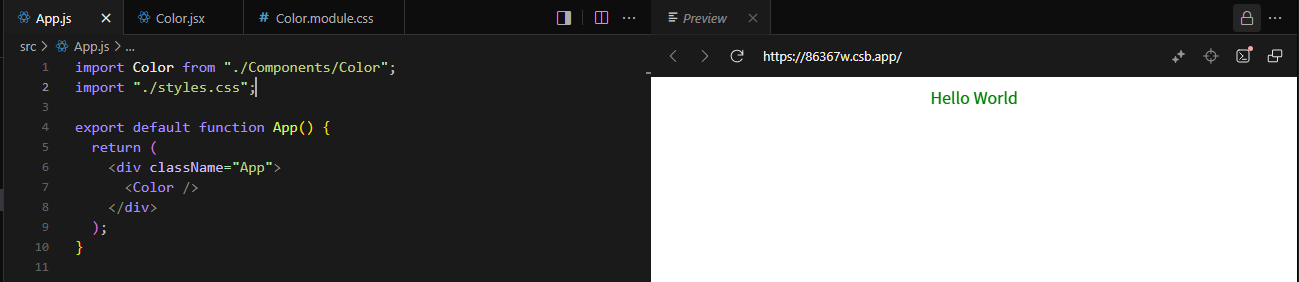
2. CSS 모듈


CSS 파일의 클래스명이 컴포넌트 범위 내에서만 유효하도록 하는 방식


로컬(VScode)

/* Color.module.css */
.myClass {
  color: green;
}

// Color.js
import styles from './Color.module.css';

function Color() {
  return <div className={styles.myClass}>Hello World</div>;
}

export default Color;


결과(CodeSandBox)

3. Styled Components 

JavaScript 파일 안에서 CSS를 작성하는 방법 (많이 사용되는 방식)

※ 아래에 해당 라이브러리 설치


설치 명령어

// npm
$ npm i styled-components

// yarn
$ yarn add styled-components


로컬(VScode)

// styled-components 라이브러리 불러오기
import styled from 'styled-components';

const MyDiv = styled.div`
  color: red;
`;

function Color() {
  return <MyDiv>Hello World</MyDiv>;
}

export default Color;


결과(Codepen.io)

See the Pen 3 by 유상현 (@ltfsrwdf-the-selector) on CodePen.

4. Inline Style

React에서 style 속성을 통해 인라인 스타일을 적용


로컬(VScode)

function Color() {
  return <div style={{ color: 'purple' }}>Hello World</div>;
}

export default Color;


결과(Codepen.io)

See the Pen Untitled by 유상현 (@ltfsrwdf-the-selector) on CodePen.

5. SCSS 

CSS 전처리기인 Sass를 사용하여 좀 더 복잡한 스타일링을 적용

※ node-sass 패키지를 설치


설치 명령어

// npm
npm install node-sass

// yarn
yarn add sass


로컬(VScode)

/* Color.scss */
$primary-color: blue;

.myClass {
  color: $primary-color;
}

// Color.js
import './Color.scss';

function Color() {
  return <div className="myClass">Hello World</div>;
}

export default Color;


결과(Codepen.io)

See the Pen 연습장 by 유상현 (@ltfsrwdf-the-selector) on CodePen.


기존에 HTML에서는 CSS효과를 주기 위해서 태그 안에 class로 넣었지만

React에서는 CSS효과를 주기 위해서는 태그 안에 class 대신 className으로 넣어준다. 


'React' 카테고리의 다른 글

React Router - SPA에서 다른 페이지 전환  (0) 2024.10.16
Redux - 편리한 상태관리  (0) 2024.10.15
리스트 렌더링 filter() & map()  (0) 2024.10.11
조건부 렌더링  (0) 2024.10.10
상태관리 State  (0) 2024.10.07

filter()

함수는 배열에서 주어진 조건에 맞는 요소들만 추출하여 새로운 배열을 생성하는 함수

React에서 이 함수를 사용하여 리스트를 렌더링할 때, 특정 조건에 맞는 항목만 보여주고 싶을 때 유용하게 사용


  • 기본 문법
const newArray = array.filter((element) => {
  // 조건을 반환하는 함수
  return 조건;
});


  • 예시
const UserList = () => {
// users 배열
  const users = [
    { id: 1, name: 'Alice', age: 25 },
    { id: 2, name: 'Bob', age: 17 },
    { id: 3, name: 'Charlie', age: 22 },
    { id: 4, name: 'David', age: 16 },
  ];

// users중 18살 이상만 추출
  const filteredUsers = users.filter(user => user.age >= 18);

// 반환 결과
  return (
    <div>
      <h1>User List (18 and older)</h1>
      <ul>
        {filteredUsers.map(user => (
          <li key={user.id}>
            {user.name} (Age: {user.age})
          </li>
        ))}
      </ul>
    </div>
  );
};


// 하단 codepen.io 적용
// ReactDOM.render로 UserList 컴포넌트를 #root에 렌더링
ReactDOM.render(<UserList />, document.getElementById('root'));

객체는 각각 id라는 key값, 이름, 나이를 지니고 있다.


  • 결과물

See the Pen Untitled by 유상현 (@ltfsrwdf-the-selector) on CodePen.


map()

React에서 배열을 순회하면서 각 요소를 변환하여 새로운 배열을 반환하는 함수

이를 이용하면 배열의 각 요소를 React 컴포넌트로 렌더링이 가능하다.


  1. 배열을 map()을 사용해 순회
  2. 각 요소를 JSX로 변환하여 반환
  3. 각 JSX 요소에 고유한 key 속성을 지정 이 key는 React가 각 항목을 추적하여 변경 사항을 효율적으로 업데이트하는 데 필요
  • 예시
const TodoList = () => {
  const todos = ["Learn React", "Build a project", "Practice daily"];

// key는 배열 전체
// todo는 배열 각각 총 3개
  return (
    <ul>
      {todos.map((todo, index) => (
        <li key={index}>{todo}</li>
      ))}
    </ul>
  );
};


// ReactDOM.render로 UserList 컴포넌트를 #root에 렌더링
ReactDOM.render(<TodoList />, document.getElementById('root'));


  • 결과물

See the Pen Untitled by 유상현 (@ltfsrwdf-the-selector) on CodePen.

'React' 카테고리의 다른 글

Redux - 편리한 상태관리  (0) 2024.10.15
React에서 CSS 적용하는 다양한 방법  (0) 2024.10.14
조건부 렌더링  (0) 2024.10.10
상태관리 State  (0) 2024.10.07
Prop[properties : 속성]  (0) 2024.10.04

조건부 렌더링(Conditional Rendering)

특정 조건에 따라 컴포넌트나 요소를 화면에 보여줄지 여부를 결정하는 방식

JavaScript의 조건문을 사용하여 구현되며,

조건에 맞으면(if) 해당 컴포넌트나 요소를 렌더링하고,

그렇지 않으면(else if / else) 다른 컴포넌트나 요소를 렌더링하거나 아무것도 렌더링하지 않을 수 있다.


조건부 렌더링을 구현하는 방법

  1. if 문: 전통적인 if 문을 사용하여 조건에 맞는 컴포넌트를 반환할 수 있습니다.
  2. 삼항 연산자 (? :): 간단한 조건부 렌더링을 위해 많이 사용됩니다.
  3. && 연산자: 조건이 참일 때만 컴포넌트를 렌더링합니다.
  4. switch 문: 여러 조건을 처리해야 할 때 사용할 수 있습니다.


▶ if 문을 사용한 조건부 렌더링

// Greeting.jsx (컴포넌트)
function Greeting(props) {
  const isLoggedIn = props.isLoggedIn;

// 조건부 렌더링(if문)
  if (isLoggedIn) {
    return <h1>Welcome back!</h1>;
  } else {
    return <h1>Please sign up.</h1>;
  }
}

// App.jsx
function App() {
  return (
    <div>
      <Greeting isLoggedIn={true} />
    </div>
  );
}

isLoggedIn이라는 prop에 따라 다른 텍스트가 렌더링


▶ 삼항 연산자를 사용한 조건부 렌더링

// Greeting.jsx(컴포넌트)
function Greeting(props) {
  return (
  // 삼항연산자
    <h1>{props.isLoggedIn ? 'Welcome back!' : 'Please sign up.'}</h1>
  );
}

// App.jsx
function App() {
  return (
    <div>
      <Greeting isLoggedIn={false} />
    </div>
  );
}

if문과 비교할 때, 더 간결해진 점을 볼 수 있다.

▶ && 연산자를 사용한 조건부 렌더링

// UserGreeting.jsx(컴포넌트)
function UserGreeting(props) {
  return <h1>Welcome back!</h1>;
}

// GuestGreeting.jsx(컴포넌트)
function GuestGreeting(props) {
  return <h1>Please sign up.</h1>;
}

// Greeting.jsx(컴포넌트)
function Greeting(props) {
  const isLoggedIn = props.isLoggedIn;
  
  return (
    <div>
      <h1>Hello, User!</h1>
      // 조건부 렌더링(&&)
      {isLoggedIn && <UserGreeting />}
    </div>
  );
}

// App.jsx
function App() {
  return (
    <div>
      <Greeting isLoggedIn={true} />
    </div>
  );
}

isLoggedIn && <UserGreeting /> : isLoggedIn이 true일 때만 <UserGreeting /> 컴포넌트가 렌더링

false일 시 랜더링이 되지 않는다.

따라서 true면 UserGreeting에 있는 h1태그 형식의 Welcome back! 이 화면에 출력

false인 경우 빈 공간으로 출력된다.


&& 연산자를 사용한 조건부 렌더링은 특정 조건이 참일 때만 JSX 요소를 렌더링할 때 유용하다.


▶ switch 문을 사용한 조건부 렌더링

// Greeting.jsx
function Greeting(props) {
  const { userRole } = props;
	// switch문을 이용한 조건부 렌더링
  switch (userRole) {
    case 'admin':
      return <h1>Welcome, Admin!</h1>;
    case 'editor':
      return <h1>Welcome, Editor!</h1>;
    case 'viewer':
      return <h1>Welcome, Viewer!</h1>;
    default:
      return <h1>Welcome, Guest!</h1>;
  }
}

// App.jsx
function App() {
  return (
    <div>
      {/* userRole 값을 admin, editor, viewer 또는 undefined로 변경해서 테스트 */}
      <Greeting userRole="editor" />
    </div>
  );
}

userRole="editor" → Welcome, Editer! 출력

userRole="admin" → Welcome, Admin! 출력

userRole="viewer" → Welcome, Viewer! 출력

그 외 Welcome, Guest! 출력


여러 조건을 명확하게 구분하고 관리할 수 있어 복잡한 조건을 처리할 때 유리하다.

'React' 카테고리의 다른 글

React에서 CSS 적용하는 다양한 방법  (0) 2024.10.14
리스트 렌더링 filter() & map()  (0) 2024.10.11
상태관리 State  (0) 2024.10.07
Prop[properties : 속성]  (0) 2024.10.04
JSX & Component  (0) 2024.10.02

+ Recent posts